ZapInventory user manual
ZapInventory is Zaporion's stock management module: what you hold and where, what moves in and out, what you have ordered, and what needs your attention. In the ZapHRMS application it appears as the Inventory tab in the top bar.
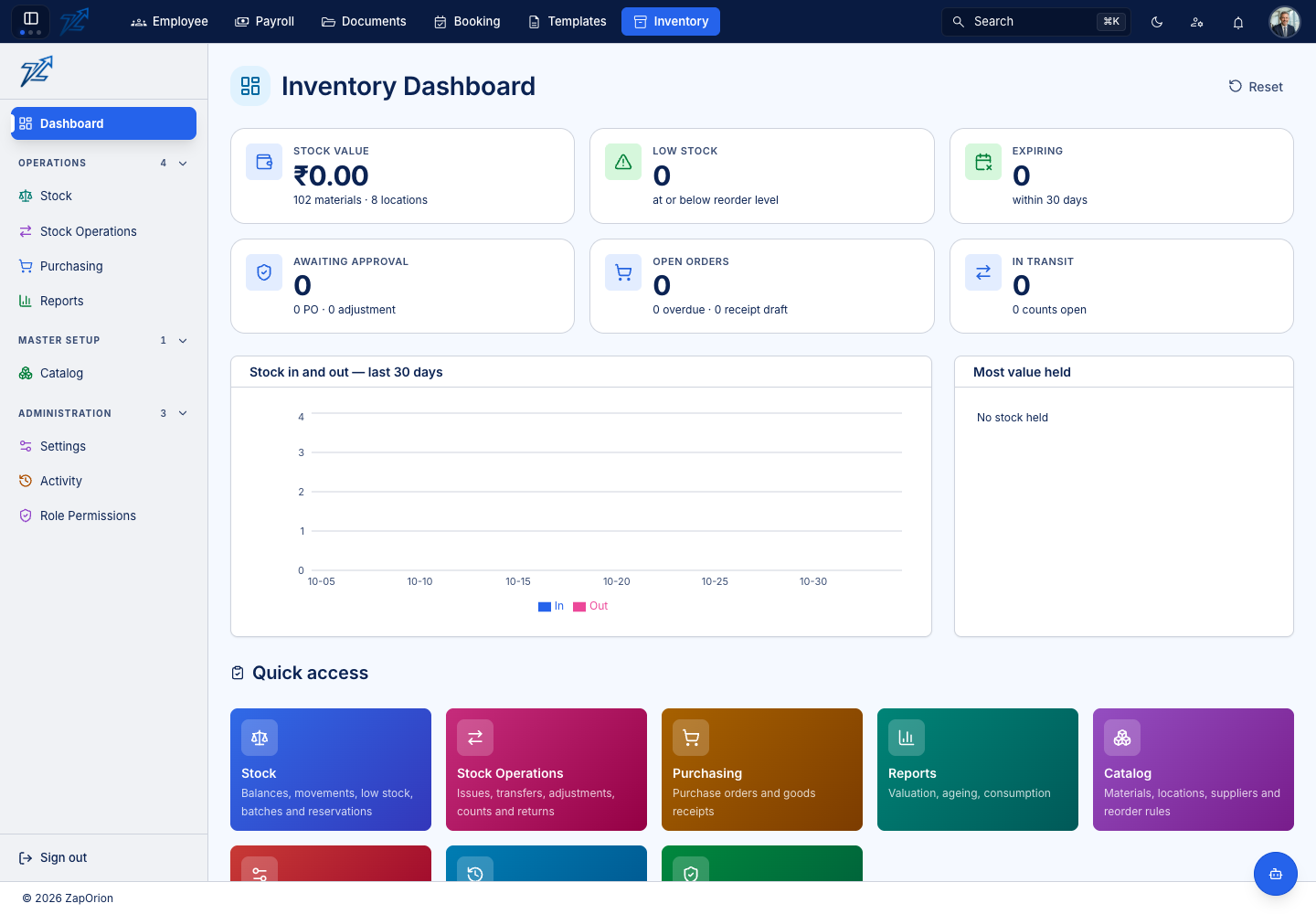
How this manual is organised
| Section | Read it to |
|---|---|
| Getting started | Sign in, understand roles, learn how stock actually moves, and set up a new organisation in the right order |
| Stock | Read the dashboard, balances and movements, batches and reservations, and the reports |
| Stock operations | Issue stock, transfer it between locations, adjust it, count it and handle returns |
| Purchasing | Raise and approve purchase orders, send them to suppliers and receive the goods |
| Catalog | Maintain materials, locations, suppliers and reorder rules, and import them in bulk |
| Administration | Settings and notifications, background jobs, outbox and audit log, role permissions |
Four ideas that explain most of the module
- Stock only moves through documents. A goods receipt, goods issue, transfer, return, adjustment or count approval is the only way a balance changes; each is a header with numbered lines, can be a draft you edit, and is audited when posted. See How stock moves.
- Stock is always held in the material's base unit. A purchase can be in another unit (a box of 12), and the conversion is applied on the way in.
- Locations are a tree. Warehouse → zone → bin. A balance belongs to a location, optionally to a batch.
- The people who raise a document are not the people who approve it. Purchase orders above a threshold, adjustments and stock counts need a second person, unless your organisation allows self-approval.
Conventions
- Menu paths are written Sidebar group → Page → Tab, for example Operations → Stock Operations → Transfers.
- A field marked
*in the app is mandatory. - Amounts are shown in your organisation's currency.
- Screenshots follow this site's light and dark mode — use the toggle in the top right. Select an image to enlarge it.
- Screens shown empty are real empty states from an organisation that has set up its catalog but not yet posted any stock.