Signing in and finding your way
ZapInventory runs inside the Zaporion application shell, alongside the other modules your organisation uses.
Sign in
Open your organisation's application address and sign in with your work account. If the identity provider offers optional two-factor setup, you may skip it or set it up. Then choose Inventory in the top bar.
:::note If there is no Inventory tab The tab appears only for people whose role holds an inventory permission. If you expect it and it is missing, ask an administrator to map your role — see Roles and access. :::
The layout
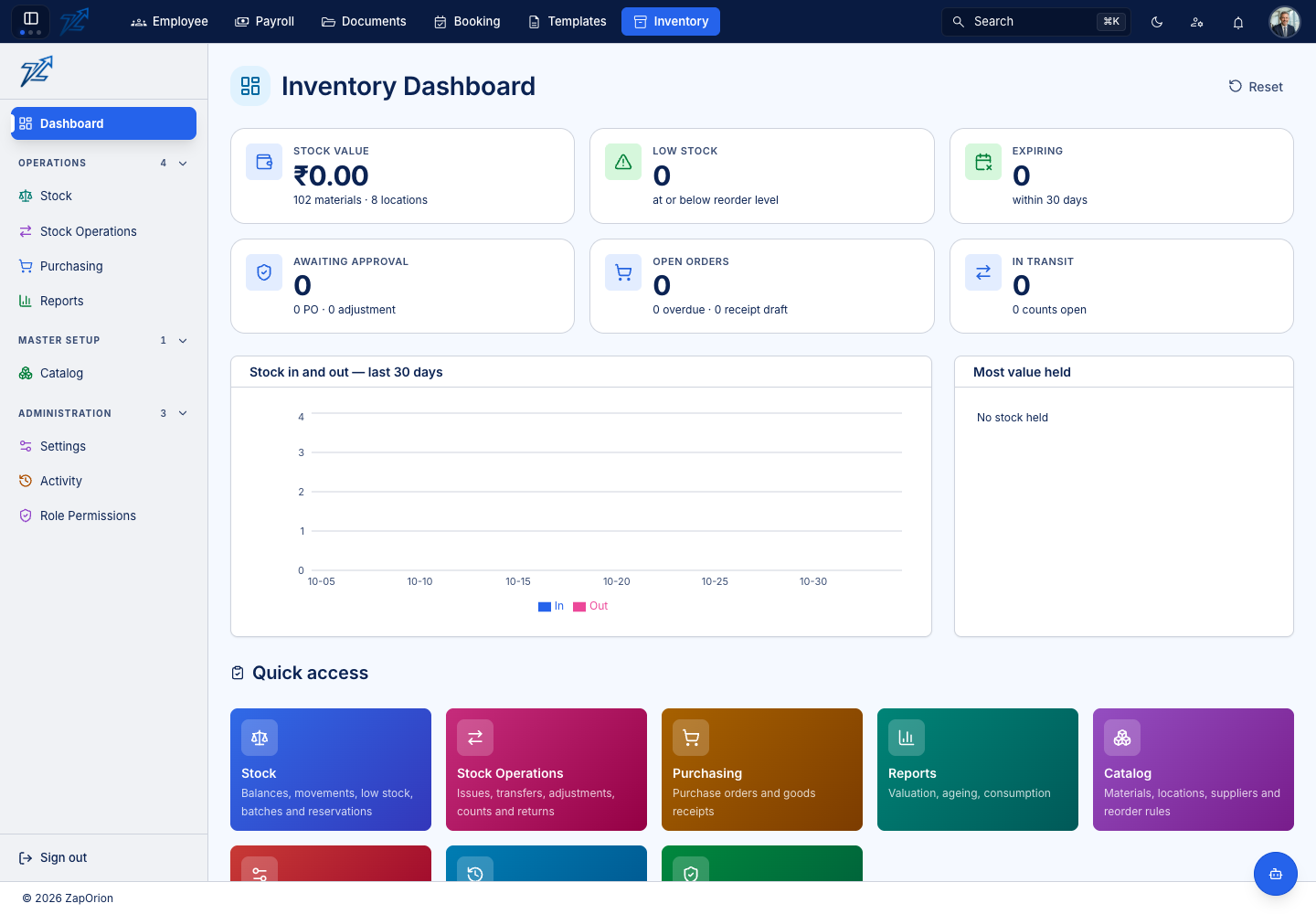
- Top bar — the sidebar toggle, module tabs, Search (
⌘K/Ctrl+K), the theme toggle, notifications and your avatar. - Sidebar — Dashboard, then three groups:
| Group | Pages |
|---|---|
| Operations | Stock, Stock Operations, Purchasing, Reports |
| Master Setup | Catalog |
| Administration | Settings, Activity, Role Permissions |
- Tabs inside a page. Several pages group related lists as tabs — Stock Operations holds Goods Issues, Transfers, Adjustments, Stock Counts and Returns; Purchasing holds Purchase Orders and Goods Receipts; Catalog holds Materials, Locations, Suppliers and Reorder Rules; Activity holds Jobs, Outbox Events and Audit Log. Each tab is a link (
?tab=…) you can bookmark.
A page, and each tab on it, appears only if your role allows it.
Search
⌘K / Ctrl+K opens the application's global search. With inventory access you can find materials, locations and suppliers by name or code from anywhere in the application — opening a result takes you to that record.
Moving around a record
Lists open a record's detail page (a material's stock and units, a purchase order's lines and status, …). New and Edit are full pages with a Back button, not pop-ups. A document's detail page carries its status, the actions that are valid for that status, its lines, and a History panel recording who did what.