Purchase orders
Operations → Purchasing → Purchase Orders — ordering goods from suppliers. Needs po:manage to raise and send, and po:approve to approve. Orders are numbered PO-. A purchase order does not move stock; the goods receipt does.
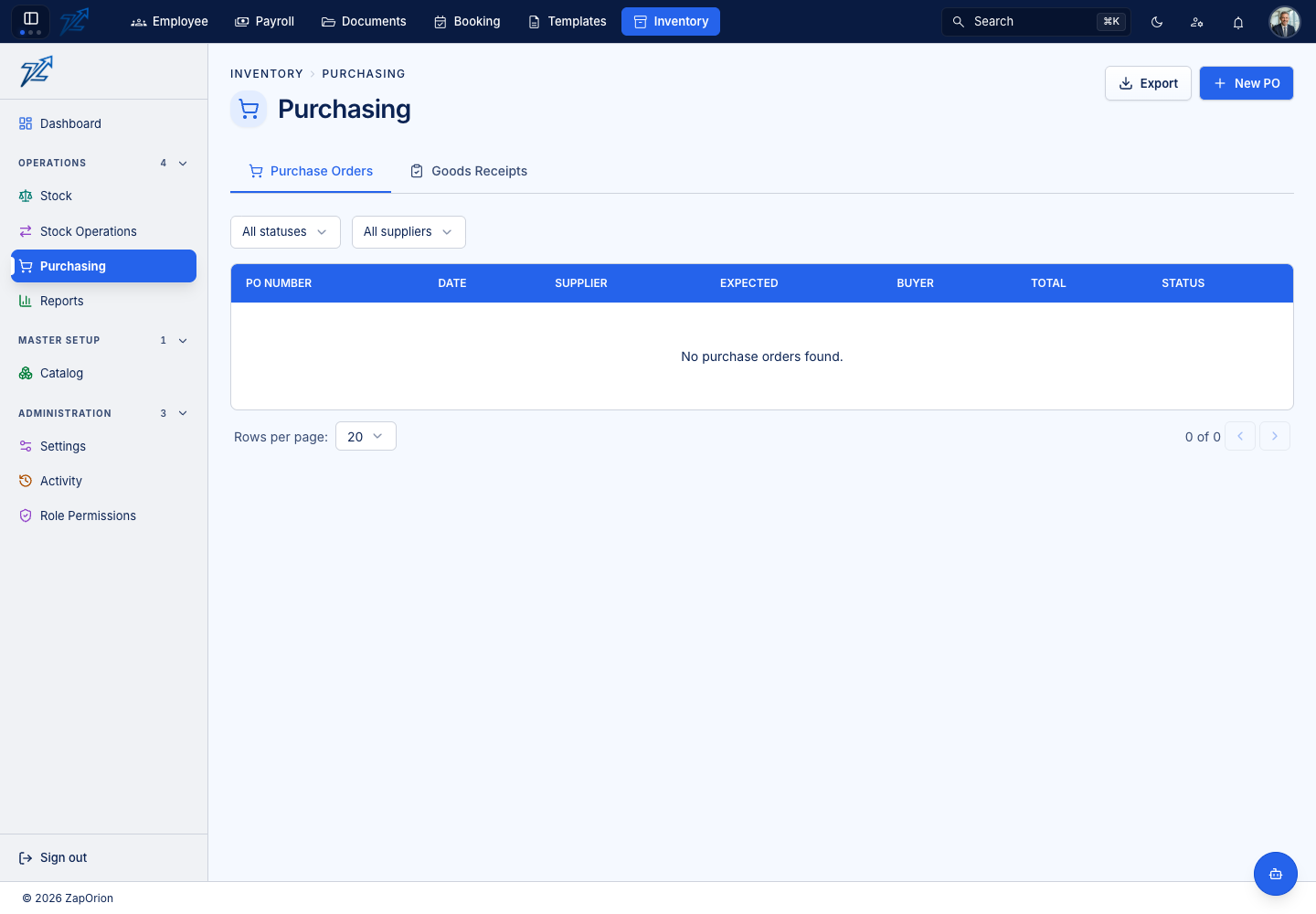
The list shows PO number, Date, Supplier, Expected, Buyer, Total and Status; filter by status and supplier, Export, or choose New PO.
Raising an order
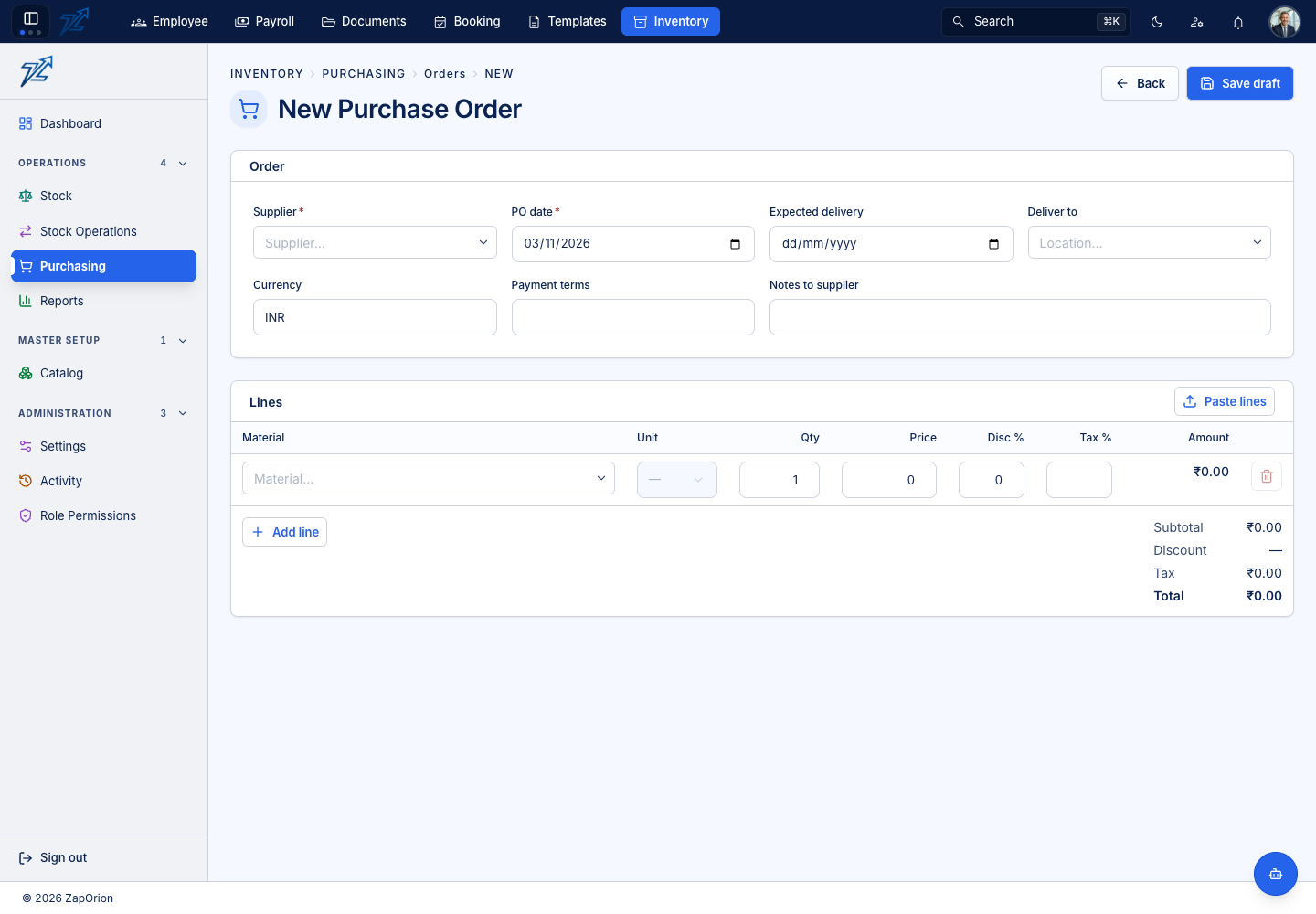
Order — Supplier *, PO date *, Expected delivery, Deliver to (the receiving location), Currency, Payment terms and Notes to supplier.
Lines — for each: the Material, its Unit (the base unit or one of its purchase units), Qty, Price, Disc %, Tax % and the computed Amount. Add line adds a row, Remove line deletes one, and Paste lines adds many at once from a spreadsheet. Below the lines the page shows Subtotal, Discount, Tax and Total. The supplier's price list and the material's tax and preferred supplier prefill what they can.
Save draft keeps it editable.
The lifecycle
Draft → (Pending approval → Approved) → Sent → Partially received → Received → Closed, or Cancelled.
| Step | What happens |
|---|---|
| Submit for approval | Offered when approval applies: PO approval is on in Settings and the order's total reaches the Approval from total threshold. Approvers are emailed. |
| Approve / Return for changes | An approver (po:approve) approves it, or returns it to the buyer with a message. Whoever raised the order cannot approve it unless Self-approval is on. The buyer is told the outcome. |
| Send to supplier | Marks the order sent. If Email POs to suppliers is on you choose Email the supplier — Yes (with a Message) or No — sent another way. Email again resends. |
| Print or save as PDF produces the order document, using the PO document template if one is set. | |
| Receive goods | Starts a goods receipt against the order. |
| Closed / Cancelled | Cancel abandons an order that has not been received; a fully received order closes. |
If an order passes its expected date plus the Overdue after (days) allowance without being received, purchasing and the buyer are reminded, and it counts in the dashboard's Open orders — overdue.
History
Every status change — who, what and when — is recorded in the order's History panel and the Audit Log.